



Before you start
Start Steam and sign in to the account you want to use, then open Workshop in Hovermate. Available items depend on Steam and your account.
You can share whole profiles, individual crosshairs, action menus, and saved widget templates or scenes, including stream widgets.
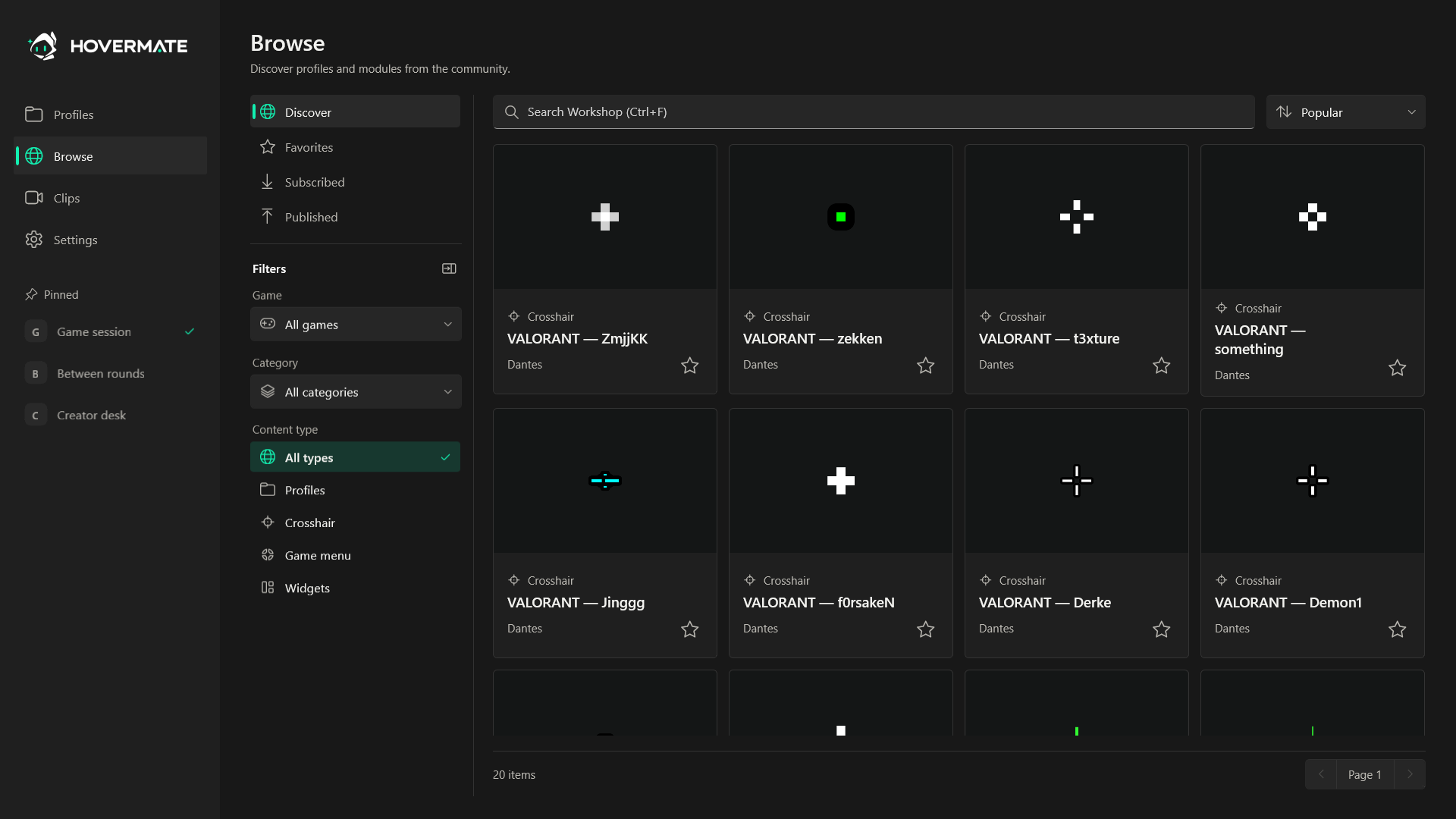
Find and add an item
- Open Discover. Search by title or use the game, category and content type filters.
- Open an item and choose Preview contents to inspect its modules. This image preview does not run menu actions or widget code.
- Choose Add profile or Add to profile…, review the contents and select the destination. Desktop widgets need a receiving monitor or a ready Game Bar output.
- Confirm the import, then configure and activate the local profile yourself. Adding an item never activates it.
Subscribe downloads the original; it does not add it to a profile. Unsubscribe keeps existing local copies.
Publish your work
- Save your profile or module. Open its options and choose Publish to Workshop….
- For widgets, choose one template or the whole supported scene. A library template must first be added to a saved scene.
- Review the content, title, description, game, category, tags and visibility. New publications default to Only me. Choose Everyone to make the item public.
- Use the automatic cover or choose a PNG. Submit, wait for confirmation and use Open in Steam to inspect the item.
When requested, open the Steam Workshop agreement in Steam and accept it yourself. Hovermate does not accept it for you.
Review widget templates
Only reusable widget definitions are shared. Browser sources and unsupported widgets cannot be published as templates.
Review every view, state, script and embedded resource. Local values, assignments and device targets are removed, but authored text or code can still contain private details. Confirm the review before uploading.
Imported widgets start hidden. Stream source links are generated locally and are never included in a Workshop publication.
Update a publication or installed module
To update your publication, save your changes and choose Update publication for the associated profile or module. Add a change note and submit using the same Steam account.
For installed modules, use Check for update, review the downloaded version and choose Apply update. Restore previous returns to the previous content. Edited local copies stay separate.
Troubleshooting
Workshop is unavailable
Check Steam sign-in, internet access and Hovermate’s connection, then reopen Workshop.
No items match your search
Clear search and filters or switch between Discover, Favorites, Subscribed and Published.
Steam has not confirmed the upload
Check the item through Open in Steam before retrying. Closing the dialog does not cancel an upload already submitted to Steam.